
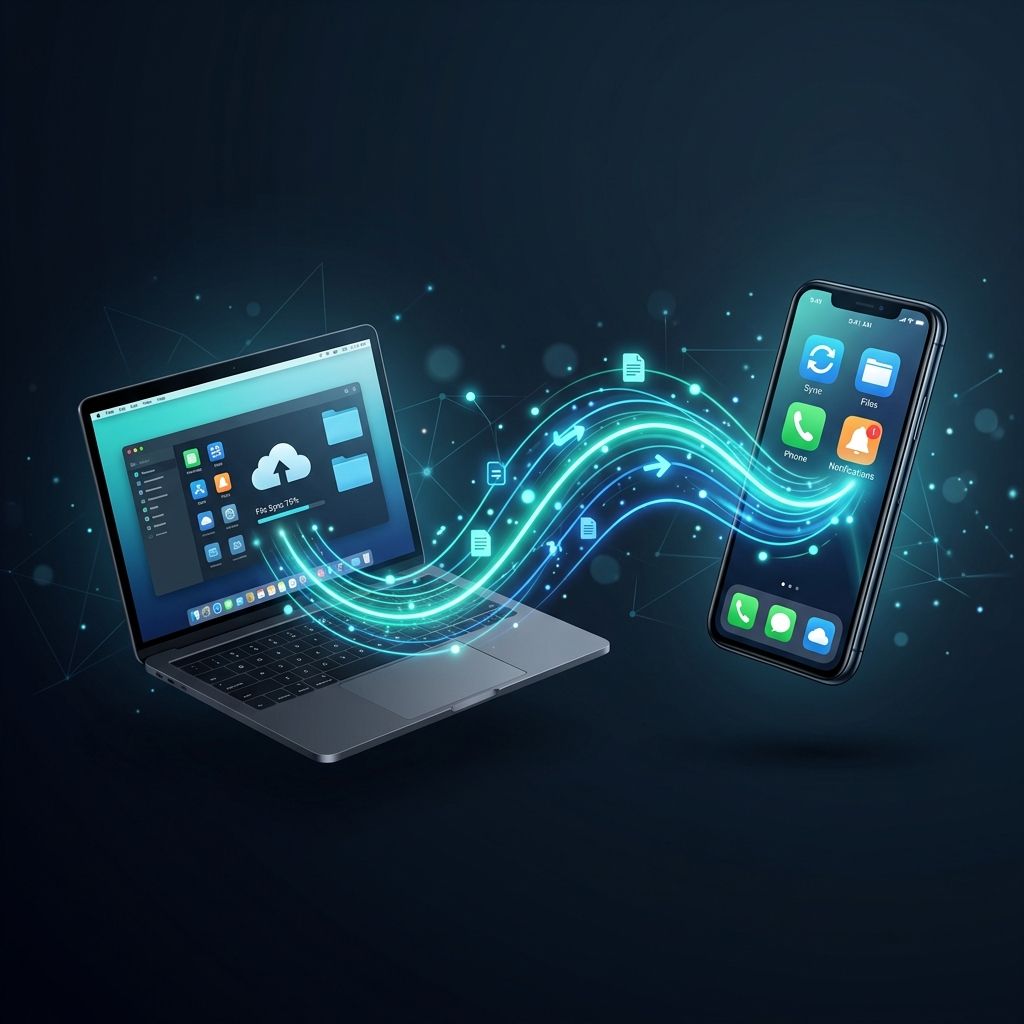
Your phone and your computer shouldn’t feel like strangers to each other. On Windows, there’s Microsoft Phone Link. On macOS, there’s Apple’s Handoff and Continuity suite. On Zorin OS, there’s Zorin Connect — and it’s more powerful than most people realize.
Zorin Connect lets you wirelessly bridge your Android phone and your Zorin OS desktop. Once paired, your two devices become a seamless team: notifications flow between them, files transfer instantly, your clipboard is shared, and you can even use your phone as a mouse or keyboard for your PC.
This guide walks you through setting it up and making the most of every feature.
What You Need
- A computer running Zorin OS (Zorin Connect is pre-installed)
- An Android phone (Android 6.0 or later)
- Both devices connected to the same Wi-Fi network
Note: iPhone support is limited due to iOS restrictions on background networking. Zorin Connect works best with Android devices.
Step 1: Set Up Zorin Connect on Your PC
Zorin Connect comes pre-installed on Zorin OS — you don’t need to install anything.
To open it:
- Click the Zorin Menu (bottom-left or top-left, depending on your layout)
- Search for “Zorin Connect” and open it
The Zorin Connect window will open, showing a waiting state. It’s ready to pair with your phone.
You’ll also notice a Zorin Connect icon in your system tray (the small icons near the clock on your panel). This gives you quick access to connected devices from the desktop.
Step 2: Install KDE Connect on Your Android Phone
Zorin Connect is powered by the KDE Connect protocol. On Android, install the KDE Connect app:
- Open the Google Play Store on your phone
- Search for “KDE Connect”
- Install and open the app
Alternatively, you can install it from F-Droid if you prefer open-source app stores.
Once installed, open KDE Connect on your phone. Make sure your phone is on the same Wi-Fi network as your Zorin OS computer.
Step 3: Pair Your Devices
With both apps open and on the same network:
On your phone (KDE Connect):
- Tap the ”+” button or look for your computer’s name in the device list
- Tap your computer’s name
- Tap “Request Pairing”
On your PC (Zorin Connect):
- A pairing request notification will appear
- Click “Accept”
Your devices are now paired. You’ll see your phone appear in Zorin Connect on your PC, along with its battery level and connection status.
Feature 1: Notification Mirroring
Once paired, notifications from your phone appear on your desktop automatically. A WhatsApp message, a Gmail alert, an Instagram mention — they all pop up as desktop notifications on Zorin OS, so you can stay informed without picking up your phone.
To enable this:
- In KDE Connect on your phone, tap your paired PC
- Tap “Notification Sync” and enable it
- Grant notification access when prompted
You can dismiss notifications on your PC and they’ll clear on your phone too (and vice versa on many apps).
Feature 2: Clipboard Sync
Clipboard sync is one of the most useful — and underrated — features of Zorin Connect. Copy something on your phone, paste it on your PC. Copy on your PC, paste on your phone. It works in both directions, automatically.
This is enabled by default once paired. To test it:
- Copy a web link or piece of text on your phone
- Open any text editor or browser on your PC and press Ctrl+V
The text from your phone will paste instantly.
Feature 3: Wireless File Transfer
Sending files between your phone and PC has never been easier. No USB cable required.
From phone to PC:
- In your phone’s file manager or any share sheet, select a file
- Tap Share and choose “KDE Connect”
- Select your PC from the list
- The file appears in your Downloads folder on Zorin OS instantly
From PC to phone:
- Open Zorin Connect on your PC
- Click your phone’s name
- Click “Send Files”
- Select the file(s) to send — they’ll arrive on your phone automatically
This works for photos, videos, documents, and any other file type. Large files transfer quickly over your local Wi-Fi network.
Feature 4: Remote Input — Your Phone as a Mouse and Keyboard
This one feels like magic the first time you try it. With the Remote Input feature, your phone’s touchscreen becomes a trackpad and keyboard for your PC.
To use it:
- Open KDE Connect on your phone
- Tap your paired PC
- Tap “Remote Input”
You’ll see a blank touchscreen area. Drag your finger to move the mouse cursor on your PC. Tap to click. Pinch to scroll. Tap the keyboard icon to type using your phone’s keyboard — the text appears on your PC.
This is incredibly useful for presentations (control your slides from across the room), for media playback (pause and skip without getting up), or for controlling your PC when it’s connected to a TV.
Feature 5: SMS and Calls
KDE Connect can mirror your Android SMS messages and incoming calls to your Zorin OS desktop.
For calls:
- When your phone rings, a notification pops up on your PC showing the caller’s name and number
- You can dismiss the notification or set your phone to silent directly from the PC
For SMS:
- Enable the “SMS” plugin in KDE Connect on your phone
- You can read and reply to text messages from your Zorin OS desktop without touching your phone
Note that this requires granting SMS and phone permissions to the KDE Connect app on Android, which you can do through your phone’s app permissions settings.
Bonus: Media Control
Zorin Connect also lets you control media playing on your phone from your PC, or control media on your PC from your phone.
Playing music on your phone while working? Pause it, skip tracks, or adjust the volume — all from your Zorin OS media controls.
Playing a video on your PC? Use your phone as a remote to pause, rewind, or change the volume without reaching for your mouse.
Enable this in KDE Connect under the “Multimedia Control” plugin for each paired device.
Troubleshooting: Devices Not Seeing Each Other
If your phone and PC aren’t appearing in each other’s device lists, try these steps:
- Confirm both devices are on the same Wi-Fi network — this is the most common cause
- Check your firewall — Zorin Connect needs ports 1716–1764 (TCP and UDP) open. Run the following in a terminal to allow them:
sudo ufw allow 1716:1764/tcp
sudo ufw allow 1716:1764/udp- Restart both apps — close and reopen Zorin Connect on your PC and KDE Connect on your phone
- Try manual pairing — in KDE Connect on your phone, use the “Add Device by IP” option and enter your PC’s local IP address (find it in Settings → Network → your Wi-Fi connection)
Conclusion: Your Phone and PC, Finally as One
Zorin Connect turns two separate devices into a coordinated pair. Notifications flow seamlessly. Files transfer instantly. Your clipboard becomes universal. Your phone becomes a remote control.
Once you’ve used it for a day or two, you’ll wonder how you ever worked without it. It’s one of those Zorin OS features that feels like it should be talked about far more than it is.
Set it up once, and it just works — every time you’re on your home Wi-Fi.
New to Zorin OS? Our step-by-step installation guide gets you set up from scratch. Once you’re settled in, customizing your Zorin OS desktop for productivity is a great next read — Zorin Connect pairs perfectly with a well-organized workspace.
Running a business on Zorin OS? See how entrepreneurs and small businesses leverage Zorin OS for growth — from cost savings to kiosk setups.