
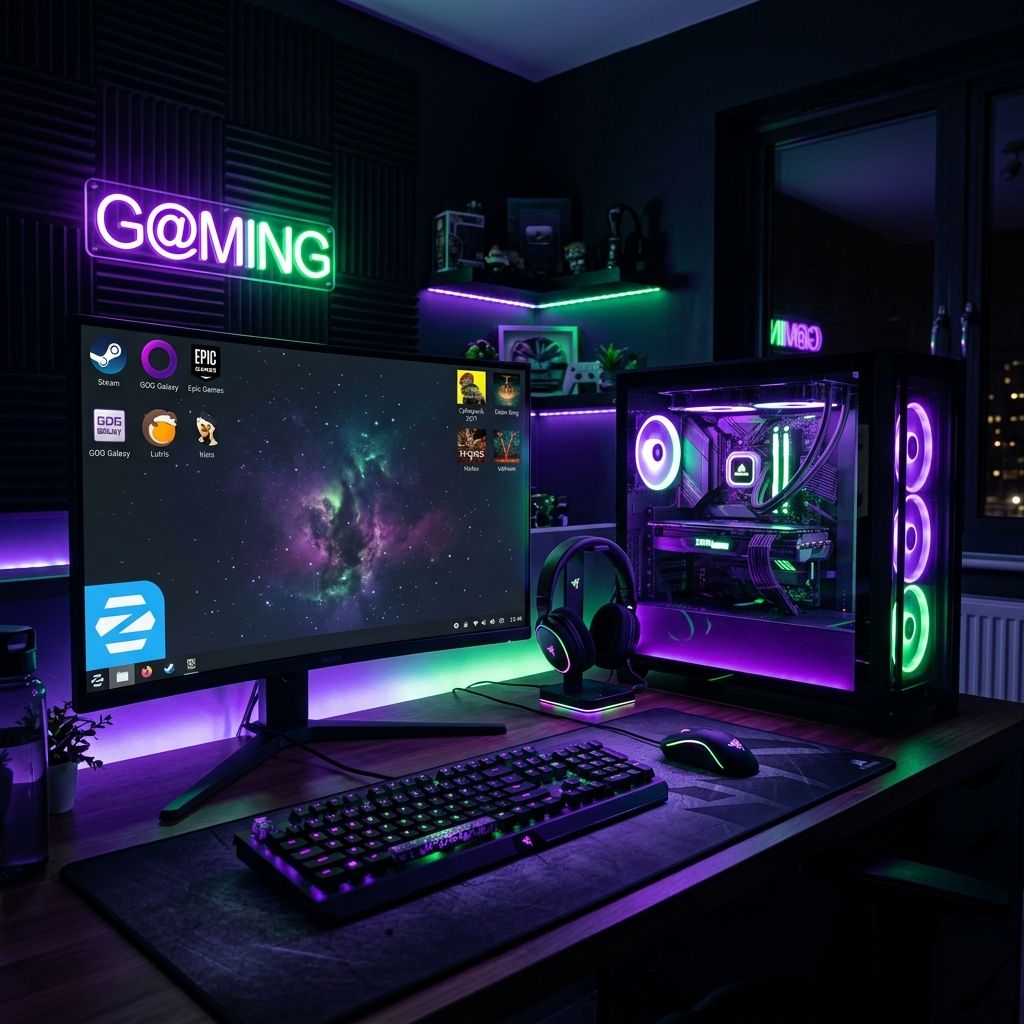
One of the biggest concerns people have when considering a switch to Linux is their game library. “Will my games work?” The answer, in 2026, is: more of them than you’d expect — and the experience keeps getting better every year.
Zorin OS is an excellent gaming platform. Thanks to tools like Steam’s Proton compatibility layer, the Heroic Games Launcher, and Lutris, you can play thousands of Windows-only titles on Zorin OS without touching a Windows installation. This guide walks you through everything you need to get started.
Before You Begin: GPU Drivers
For the best gaming performance, make sure your GPU drivers are properly installed. Zorin OS handles this through the Software & Updates app:
- Open the Zorin Menu and search for “Software & Updates”
- Click the “Additional Drivers” tab
- If you have an NVIDIA GPU, select the latest proprietary NVIDIA driver from the list and click “Apply Changes”
- Restart your computer
AMD and Intel GPU users are typically covered by open-source drivers that ship with the kernel — no additional steps needed.
Method 1: Steam + Proton (Recommended for Most Users)
Steam is the largest PC gaming platform in the world, and Valve has invested heavily in making Windows games run on Linux through a compatibility layer called Proton. The results have been remarkable — thousands of games now work with little to no configuration.
Installing Steam:
- Open the Zorin Software Store
- Search for “Steam”
- Click Install
Or install it via terminal:
sudo apt install steamEnabling Steam Play (Proton):
Once Steam is installed and you’ve logged in:
- Open Steam and go to Steam → Settings → Compatibility
- Toggle “Enable Steam Play for all other titles”
- Select the latest Proton version from the dropdown (e.g., Proton Experimental or Proton 9.x)
- Click OK and restart Steam
Now you can install and launch Windows-only games directly from your Steam library. Steam will automatically download Proton and use it behind the scenes — you just click Play as normal.
Checking compatibility:
Before downloading a large game, check its Linux compatibility at ProtonDB — a community database where players report how well each game runs. Games rated Platinum or Gold typically work flawlessly. Silver games usually work with minor tweaks. Bronze may have issues.
Method 2: Heroic Games Launcher (GOG & Epic Games)
If your library lives on the Epic Games Store or GOG, Heroic Games Launcher is your best friend. It’s a beautiful, open-source app that gives you full access to your Epic and GOG libraries on Linux, using Wine/Proton under the hood.
Installing Heroic:
- Open the Zorin Software Store
- Search for “Heroic Games Launcher”
- Click Install
Alternatively, download the latest .deb package directly from the Heroic GitHub releases page and double-click to install it.
Setting up Heroic:
- Launch Heroic and sign in with your Epic Games or GOG account (or both)
- Your full library will appear — both free games you’ve claimed and purchased titles
- Before installing a game, go to Settings → Game Defaults and set the Wine version to Proton (download it from within Heroic if prompted)
- Install and launch games just like you would on Windows
Heroic also supports Amazon Prime Gaming titles and allows importing games you’ve already downloaded, making it a versatile hub for non-Steam games.
Method 3: Lutris (Battle.net, EA App, and More)
For games that don’t live on Steam, GOG, or Epic — think Battle.net games like Diablo IV or World of Warcraft, EA App titles, or standalone games — Lutris is the tool you need.
Lutris is a universal gaming platform for Linux that uses community-maintained install scripts to set up games and their launchers automatically.
Installing Lutris:
sudo apt install lutrisOr search for it in the Zorin Software Store.
Using Lutris:
- Visit lutris.net and search for the game or launcher you want (e.g., “Battle.net”)
- Click the “Install” button on the website — it will open Lutris automatically
- Follow the on-screen installer steps
- Lutris handles everything: downloading Wine, setting up the Windows environment, and configuring the game
For Battle.net specifically, once the launcher is installed through Lutris, you can install any Battle.net game (World of Warcraft, Diablo IV, Overwatch 2, etc.) directly within the launcher — exactly as you would on Windows.
Performance Tips
Once your games are running, a few tweaks can make them run even better:
Enable GameMode:
GameMode is a system daemon that temporarily optimizes CPU and GPU performance when a game is running. Install it with:
sudo apt install gamemodeIn Steam, add this to a game’s launch options (right-click → Properties → Launch Options):
gamemoderun %command%Enable MangoHud for performance monitoring:
MangoHud is an overlay (similar to MSI Afterburner on Windows) that displays FPS, CPU/GPU temperature, and frame times while gaming:
sudo apt install mangohudAdd to Steam launch options:
mangohud %command%Use the latest Proton versions:
Valve regularly releases improvements to Proton. In Steam Settings → Compatibility, make sure you’re using the latest stable Proton version, or try Proton-GE (a community-enhanced version) for games that need extra patches. You can install Proton-GE easily using the ProtonUp-Qt tool, available in the Software Store.
Conclusion: Your Game Library Is Waiting
The idea that switching to Linux means losing access to your game library is outdated. With Steam + Proton, Heroic, and Lutris working together, you can play the vast majority of your Windows games on Zorin OS — often with identical performance and sometimes with better stability.
The Linux gaming ecosystem has reached a tipping point. Valve’s Steam Deck has proven that Linux can be a premier gaming platform. Zorin OS brings that same capability to a traditional desktop, wrapped in a familiar and beautiful interface.
Install Steam, enable Proton, and start playing. Your library is waiting.
Not on Zorin OS yet? Our step-by-step installation guide gets you up and running quickly. Once you’re set up, learn how Zorin OS compares to Ubuntu — especially on older hardware where gaming performance matters.
Looking to get more out of your setup? Customizing Zorin OS for maximum productivity covers workspaces, shortcuts, and performance tweaks that complement any gaming setup.