
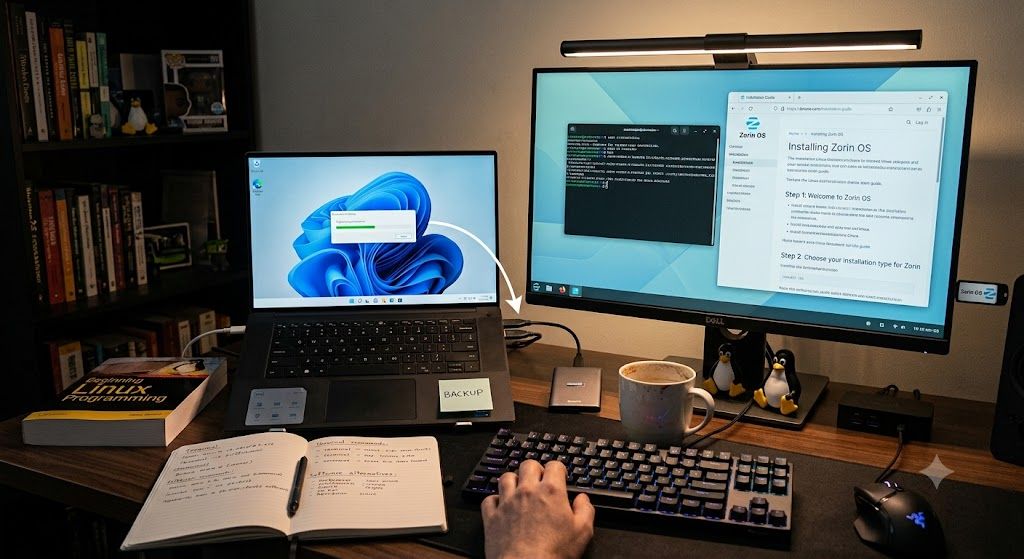
A word of caution: This is a simplified overview, not a complete handbook for every PC. Replacing Windows wipes the disk. Read the steps, check official Zorin OS docs for your hardware, and only proceed if you understand the risk and have a backup you can restore from. If you are not comfortable doing this yourself, get help from someone who is.
You can switch from Windows 11 to Zorin OS in an afternoon. You do not need to learn the terminal, dual-boot, or keep Windows “just in case.” This guide is a full replace: Zorin OS becomes the only system on the PC, with your files copied back afterward.
The desktop will still feel familiar (taskbar, app menu, file windows) without Copilot in the taskbar, Recall snapshots, or ads in the Start menu.
If you are still on Windows 10, use our Windows 10 migration guide instead. New to Zorin OS? Start with what Zorin OS is.
Why people leave Windows 11 (without the rant)
Windows 11 is a capable OS. A lot of people still want something quieter. Three features come up again and again:
Copilot. Microsoft has been folding an AI assistant into the taskbar, Edge, and other surfaces. Some people use it. Many others find it hard to ignore, hard to fully remove, and easy to click by mistake. Zorin OS does not ship a system-wide Copilot. You get a desktop, then you add the apps you want.
Recall. Recall is Microsoft’s feature for capturing what you do on the PC so you can “search” your past activity. Even if it is optional, off by default, or limited to certain hardware, the idea of a rolling record of your screen is enough for some households and small offices to look elsewhere. Zorin OS does not include an equivalent.
Ads. Windows 11’s Start menu, lock screen, and Settings have carried suggestions, “recommended” apps, and other promotional content depending on version and region. Zorin OS does not show ads on the desktop or in the app menu.
None of that means Windows 11 is “bad.” It just means you are allowed to want a PC that stays out of the way. Zorin OS is built for that kind of switcher.
What you will need
- A USB flash drive (8 GB or larger)
- An external drive (or a second large USB) for a full backup
- About one to two hours, plus download time for the Zorin OS image
- Your Windows 11 PC connected to the internet for the download
This article assumes you are wiping the Windows disk. Dual-boot is possible, but it is not the path we recommend here if your goal is a simple, quiet daily driver.
Step 1: Confirm the PC can run Zorin OS
Most Windows 11 PCs run Zorin OS Core comfortably. If the machine is older or has 4 GB of RAM or less, consider Zorin OS Lite.
Windows 11 required TPM 2.0 and Secure Boot. Zorin OS does not. You do not need to “qualify” for Windows 11 hardware rules to install it.
Not sure about RAM, storage, or edition? Use the Zorin OS system requirements guide.
Step 2: Back up everything (including BitLocker)
A full replace erases the Windows partition. If it is not on a backup drive, it is gone.
Turn off BitLocker (or save the recovery key)
Many Windows 11 machines encrypt the drive with BitLocker. Before you copy files:
- Search Windows for BitLocker and open the settings panel
- If the drive is encrypted, suspend BitLocker or decrypt it so File Explorer can copy files without surprises
- Either way, print or save the BitLocker recovery key (Microsoft account, printout, or USB) until the switch is finished
If you skip this and something goes wrong mid-copy, encrypted files can be painful to recover.
What to copy
Copy these from your user folder (C:\Users\YourName) to the external drive:
- Documents, Pictures, Videos, Downloads, Desktop
- Any project folders you keep outside those libraries
- Browser bookmarks (Chrome, Edge, or Firefox can export to HTML)
- Outlook
.pstfiles if you use desktop Outlook with local mail - Password export from your browser, or confirm they live in a password manager
OneDrive. Files that only live in the cloud are already backed up. Files marked “online only” should be made available offline, or downloaded from onedrive.com, so you have a local copy on the external drive.
Photos and phone backups. Check the Pictures folder and OneDrive/Google Photos so you are not relying on a single Microsoft account after the wipe.
Do not start the installer until the backup drive has been unplugged and you have opened a few folders on it to confirm the files are really there.
Step 3: Download Zorin OS and write the USB
- On Windows, open zorin.com/os and download Zorin OS Core (or Lite, if that matches your hardware)
- Download Balena Etcher from etcher.balena.io
- Plug in the USB installer drive (this is not your backup drive)
- In Etcher: Flash from file → pick the
.iso→ Select target → your USB → Flash
Everything on that USB will be erased. Keep the backup drive out of the machine while you flash.
A longer walkthrough of USB creation and first boot lives in the step-by-step installation guide. Use that if a step here feels thin; the rest of this article stays focused on leaving Windows 11.
Step 4: Try Zorin OS from the USB (still no wipe)
Restart the PC and open the boot menu (often F12, F10, Esc, or Del, depending on the brand). Boot from the USB.
On the welcome screen, choose Try Zorin OS. Spend ten minutes on Wi-Fi, display scaling, sound, and a browser. You have not erased Windows yet.
If the live session cannot see Wi-Fi or the screen is unusable, stop. Fix that before you choose erase-and-install. The installation guide covers boot-order issues if Windows keeps starting instead of the USB.
Step 5: Full replace: erase the disk and install
When you are ready:
- Confirm the backup drive is unplugged
- Launch Install Zorin OS
- For installation type, choose Erase disk and install Zorin OS
That is the full-replace option. It removes Windows 11 from that drive. There is no “undo” besides restoring from your backup and reinstalling Windows from Microsoft’s media if you change your mind later.
Then walk through timezone, keyboard, and your user account. Wait for the copy to finish (often 10 to 20 minutes), remove the USB when asked, and reboot.
You will not see Copilot, Recall, or a Start-menu ads row. You will see a Windows-like desktop.
Step 6: First hour: files, browser, office
- Log in and connect to Wi-Fi
- Let Software Updater run when it appears (or install updates from the Software app)
- Plug in the backup drive and copy Documents, Pictures, and the rest into your home folders
- In Firefox (pre-installed), import the bookmarks HTML file
- Open Software and install what you actually use: Chrome or Brave, VLC, Steam, Zoom, and so on. Our best apps for Zorin OS list is a practical starting set
Microsoft 365. Word, Excel, and Outlook on the web still work in Firefox or Chrome. LibreOffice is pre-installed and opens .docx / .xlsx files for offline work. You do not need a Windows license for that.
Windows-only programs. Some specialist tools have no Linux build. Check before you wipe if your job depends on one of them. Everyday browsing, documents, email, video calls, and a lot of Steam games are the easy part.
For the layout itself (menu, taskbar, files), see familiarizing yourself with the Zorin OS interface.
What you leave behind, and what stays familiar
| On Windows 11 | On Zorin OS |
|---|---|
| Copilot in the taskbar | No system Copilot; add AI in the browser if you want it |
| Recall (activity history) | No equivalent feature |
| Ads / “recommended” in Start | App menu without promotional tiles |
| Microsoft account push | Local user account; no Microsoft account required |
| Edge + Windows apps | Firefox by default; Chrome and others in Software |
| File Explorer | Files app, same folders-and-windows idea |
The adjustment is mostly names and a slightly different Settings app, not a new way of using a computer.
FAQ
Will a full replace delete my Windows 11 files?
Yes, on that disk. That is why the backup step comes first. The installer cannot “put Windows back” from the same disk after erase.
Can I go back to Windows 11 later?
Yes, with Microsoft’s official installer on a USB and your product key or digital license, plus your backup. Plan on a full reinstall, not a hidden partition, if you chose erase-and-install.
Do I need to uninstall Copilot or turn off Recall first?
No. They live inside Windows. Once Windows is gone, they are gone. Back up files; you do not need a special “remove AI” cleanup.
Will my printer and Wi-Fi work?
Usually yes, especially on typical Intel/AMD laptops. The live USB session is the honest test. If Wi-Fi fails there, do not erase yet.
Is this the same as the Windows 10 guide?
The USB and installer steps overlap. This article is for Windows 11 specifically: BitLocker, OneDrive, and leaving Copilot, Recall, and ads behind with a full replace. The Windows 10 guide is the files-first sibling for that OS.
You do not have to become a “Linux person” to finish this. You back up, you try the USB, you erase the disk on purpose, and you copy your life back onto a quieter desktop. When you want to tune layouts and shortcuts, customizing Zorin OS for productivity is the natural next read.